Fix an import error and use detailed templates
Resolve unclear rows before saving; keep advanced options available.
Imports → Review / More import options
Before you beginKeep your original spreadsheet unchanged and edit a working copy.
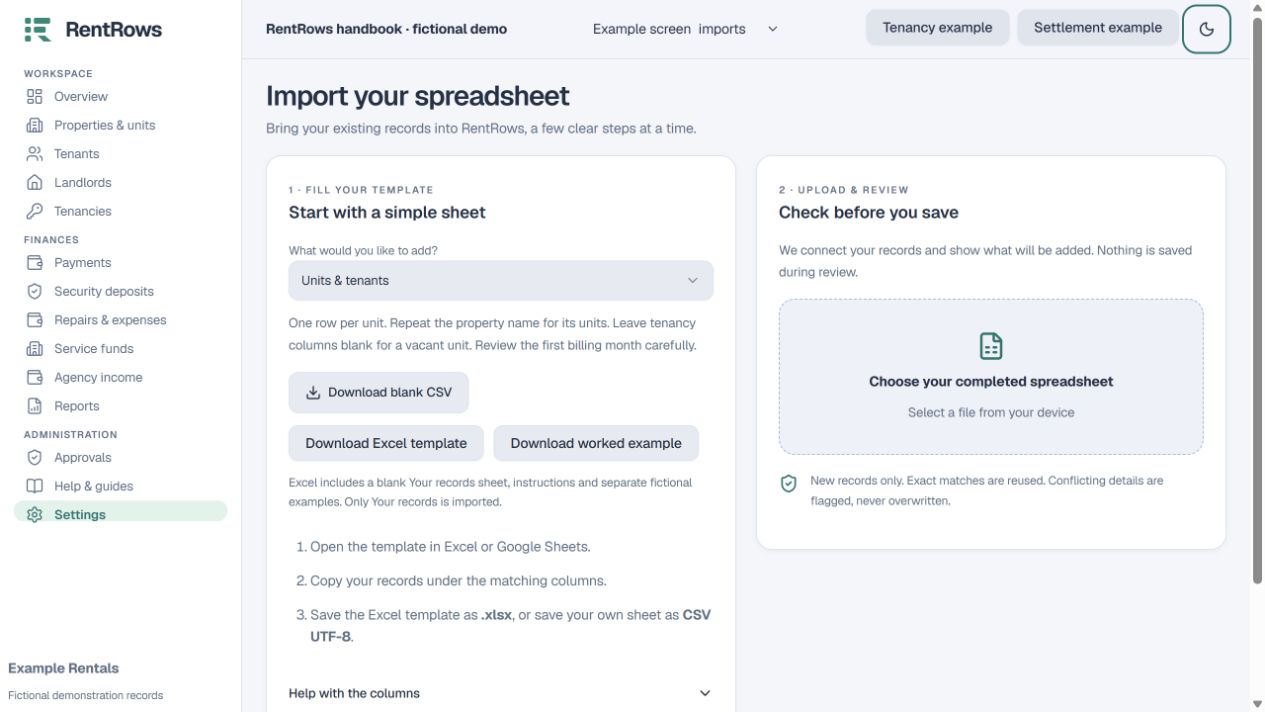
Follow the steps
- 01
Read the row number and problem. Download the error list when several rows need attention.
- 02
Check repeated unit labels, conflicting names, dates, amounts and payment references. A saved record with different details must be reviewed in the app first.
- 03
Keep template headers unchanged. Paste values instead of formulas, remove totals/notes above the headers, and export CSV UTF-8 again.
- 04
Upload and review again. Reviews expire after 30 minutes, so run a fresh review before saving an older preview.
- 05
Use More import options for former tenancies, expenses or detailed records. Download that exact template and field guide; its reference columns must link to the correct saved/imported records.
- 06
If an import was already committed, inspect its saved result before retrying. Exact matches are reused, but a changed reference can describe a different transaction.
Check the result
Only a valid reviewed file is committed, and you can explain every added record.
Keep going
Still need help?
Tell support which screen you are on, what you expected and what happened. Include a bill or receipt number where useful. Never send passwords, payment credentials or email confirmation links.
Contact support →Open your workspace →