Add employees and manage their access
Give each employee a separate sign-in and retain accountability.
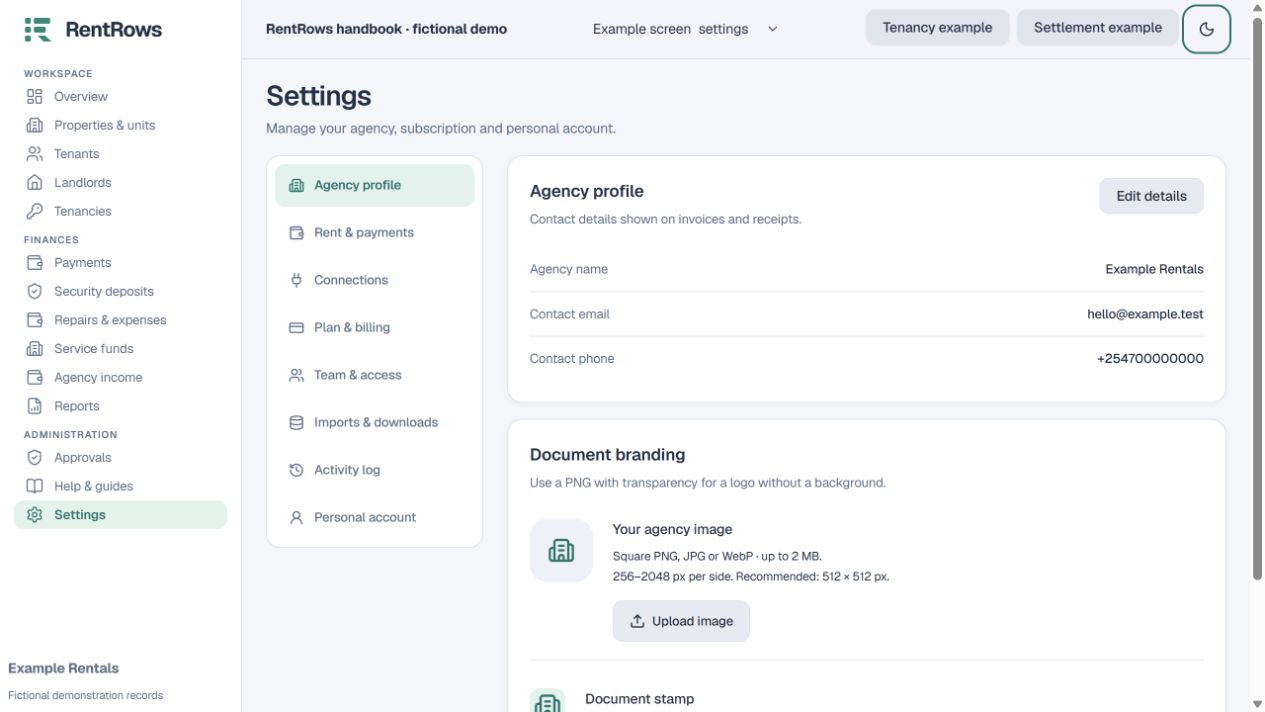
Settings → Team access
Before you beginUse Agency Team and an admin account. Each employee needs a distinct email.
Follow the steps
- 01
Open Team access and review the active people and available employee places.
- 02
Add an employee using their own email. They sign in through the normal RentRows sign-in page.
- 03
Agency Team includes one admin and two employee places. Extra employee places cost USD 4.99 each, once, when purchased.
- 04
Review protected financial change requests as admin. Approve only after checking the reason and original evidence.
- 05
Remove access when someone leaves. Restore access through the supported action when appropriate; their original financial history remains.
Check the result
Employees can work in the assigned workspace and actions remain attributable to each person.
Keep going
Still need help?
Tell support which screen you are on, what you expected and what happened. Include a bill or receipt number where useful. Never send passwords, payment credentials or email confirmation links.
Contact support →Open your workspace →