Review an employee’s financial change
Approve or reject protected changes using the reason and original evidence.
Approvals / Settings → Team & access
Before you beginSign in as the Agency Team admin. Employees use their own account to request changes.
Follow the steps
- 01
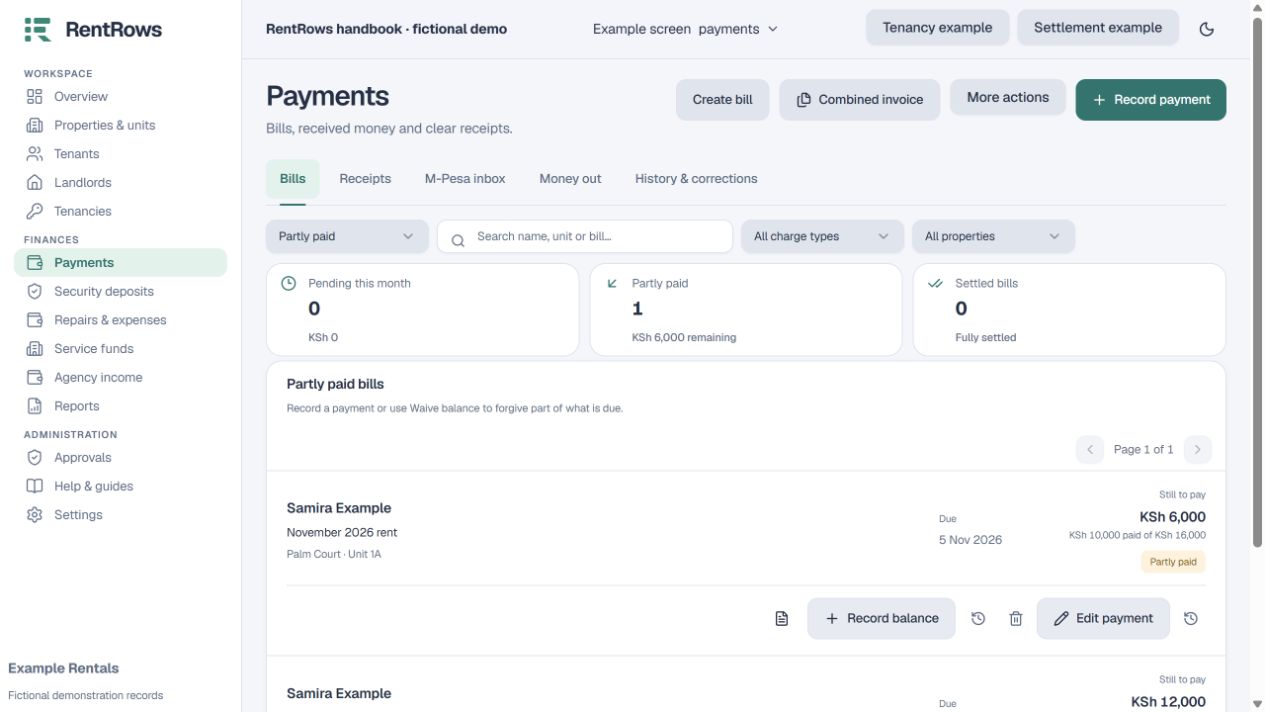
Open the pending requests and identify the transaction, person and requested change.
- 02
Read the employee’s reason. Compare the original bill, receipt or statement with the proposed result.
- 03
Check the financial effect: reopened bills, changed allocations, fees, held deposits and any dependent settlement.
- 04
Approve only when the change is correct. Reject an incorrect or unclear request rather than approving it to remove it from the queue.
- 05
After the decision, review the resulting record and audit history. If the underlying record changed while the request was pending, refresh and submit a fresh request as needed.
Check the result
The decision is recorded and the protected change follows the intended admin review process.
Keep going
Still need help?
Tell support which screen you are on, what you expected and what happened. Include a bill or receipt number where useful. Never send passwords, payment credentials or email confirmation links.
Contact support →Open your workspace →