Preview and download reports
Share useful figures without internal IDs or technical snapshots.
Reports
Before you beginChoose whether you need period activity or today’s outstanding balances.
Follow the steps
- 01
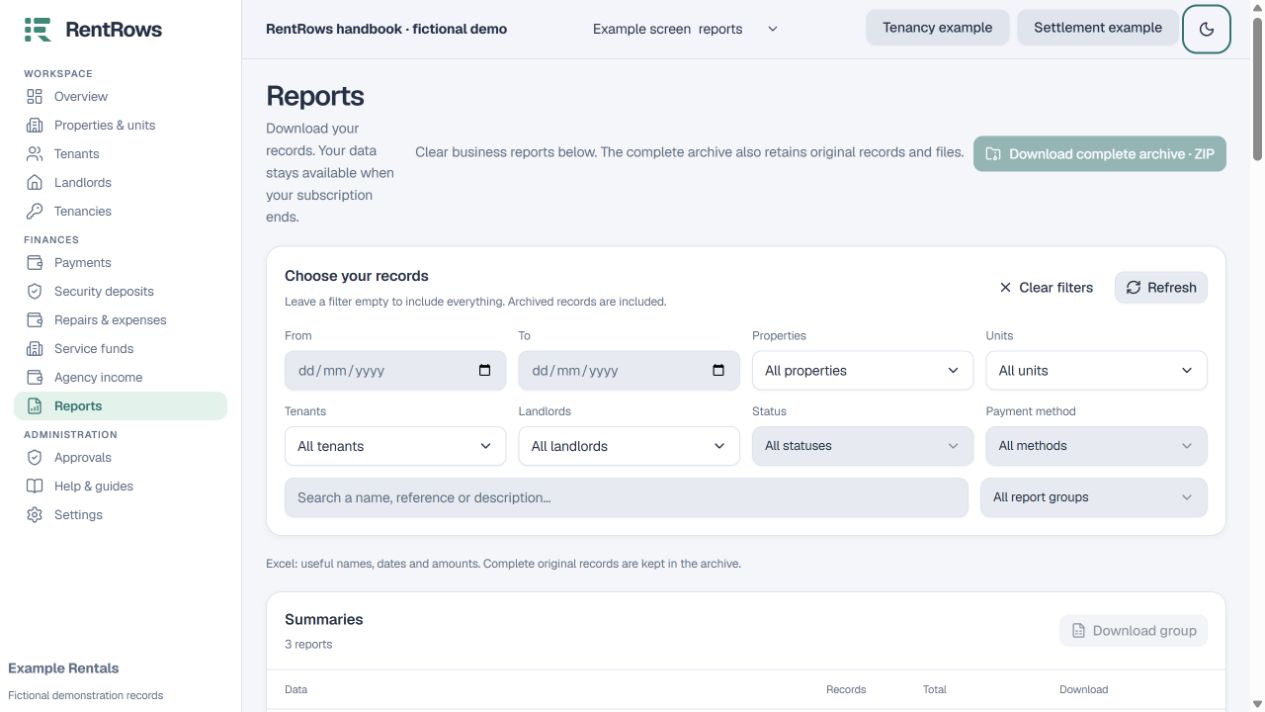
Select the dates and relevant property, tenant, unit or landlord filters.
- 02
Choose a report and preview its rows. Read its date/balance description; current outstanding balances are not a historical snapshot.
- 03
Download Excel for readable business columns, numeric money, dates, filters and a chart sheet.
- 04
Use the complete archive when you need all original records and uploaded files. It contains more detail than a statement you would send to an owner.
- 05
Check the exported total and filter period before sharing. Expired memberships retain the available export and renewal path.
Check the result
Your download contains the relevant business information in a form people can read.
Keep going
Still need help?
Tell support which screen you are on, what you expected and what happened. Include a bill or receipt number where useful. Never send passwords, payment credentials or email confirmation links.
Contact support →Open your workspace →